

How customers rate
- Each answer: Helpful and Not helpful buttons under the AI’s reply.
- The whole chat: a 1 to 5 star rating (“How would you rate our chat today?”), with an optional comment. The widget asks after the chat has been quiet for 2 minutes.
Where you see ratings
- Inbox → customer panel → Feedback and ratings: for one conversation, the Helpful and Unhelpful counts, its Satisfaction (thumbs up as a share of all thumbs), and the customer’s star rating and comment under Rating for this chat.
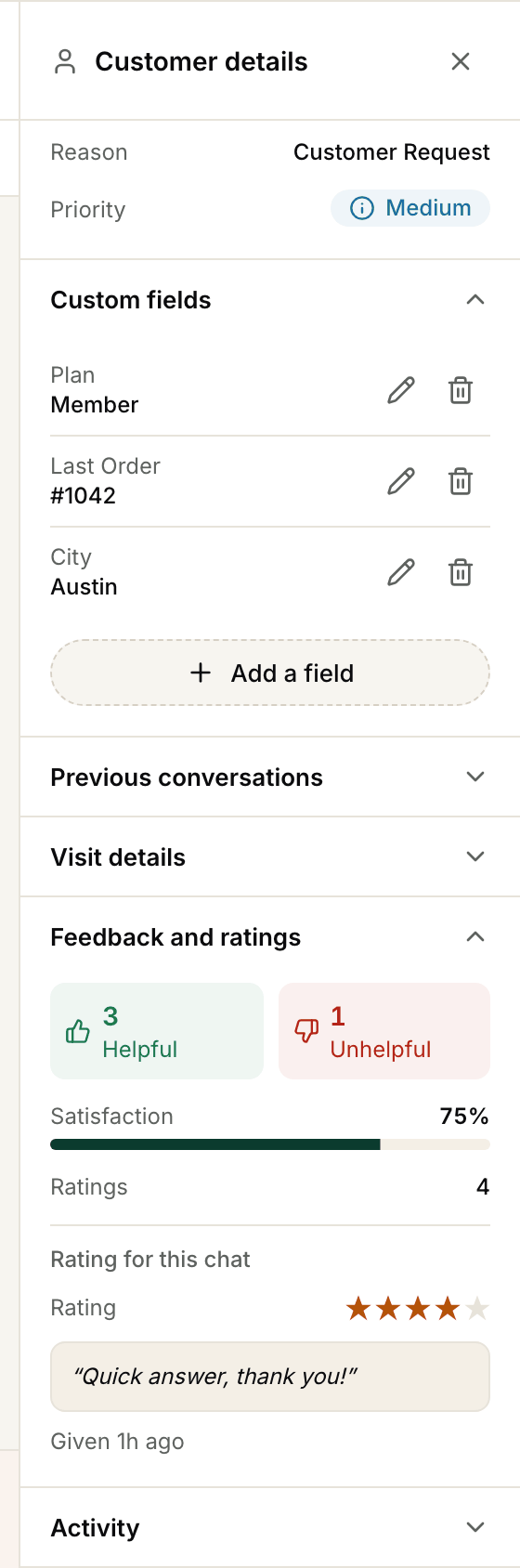
Feedback and ratings in the customer panel, with sample data.
See how your AI agent is doing
The Dashboard has a How your AI agent is doing card. Switch between 7 days and 30 days to see:- Conversations customers started, and how much was Answered by AI without a person.
- Handed to your team: how many needed a person.
- Team first reply (median): how fast your team answers chats after a handoff, next to your live chat target, and for tickets. It shows Not enough data yet until there are at least 3 replies.
- Leads captured and Tickets created, plus Conversations by day and By channel.
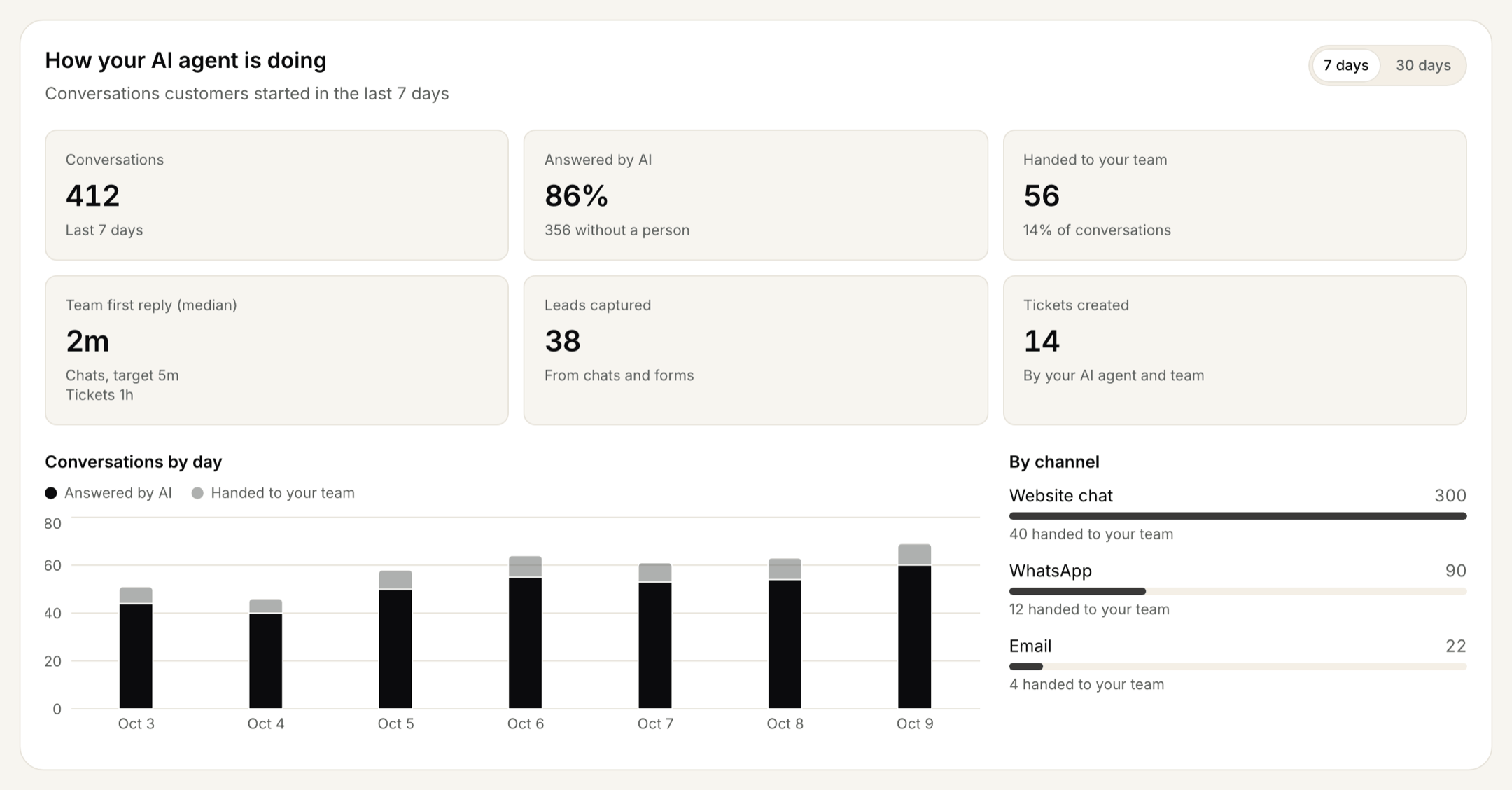
How your AI agent is doing on the Dashboard, with sample data.
Find gaps in your knowledge
- Questions your AI couldn’t answer on the Dashboard lists this week’s questions where the AI said it didn’t have the information, and how often each was asked.
- Top tags this week shows what customers asked about in chats and tickets. Manage your tags under Tags.
- Read low-rated conversations in the Inbox to see where the answer went wrong.