

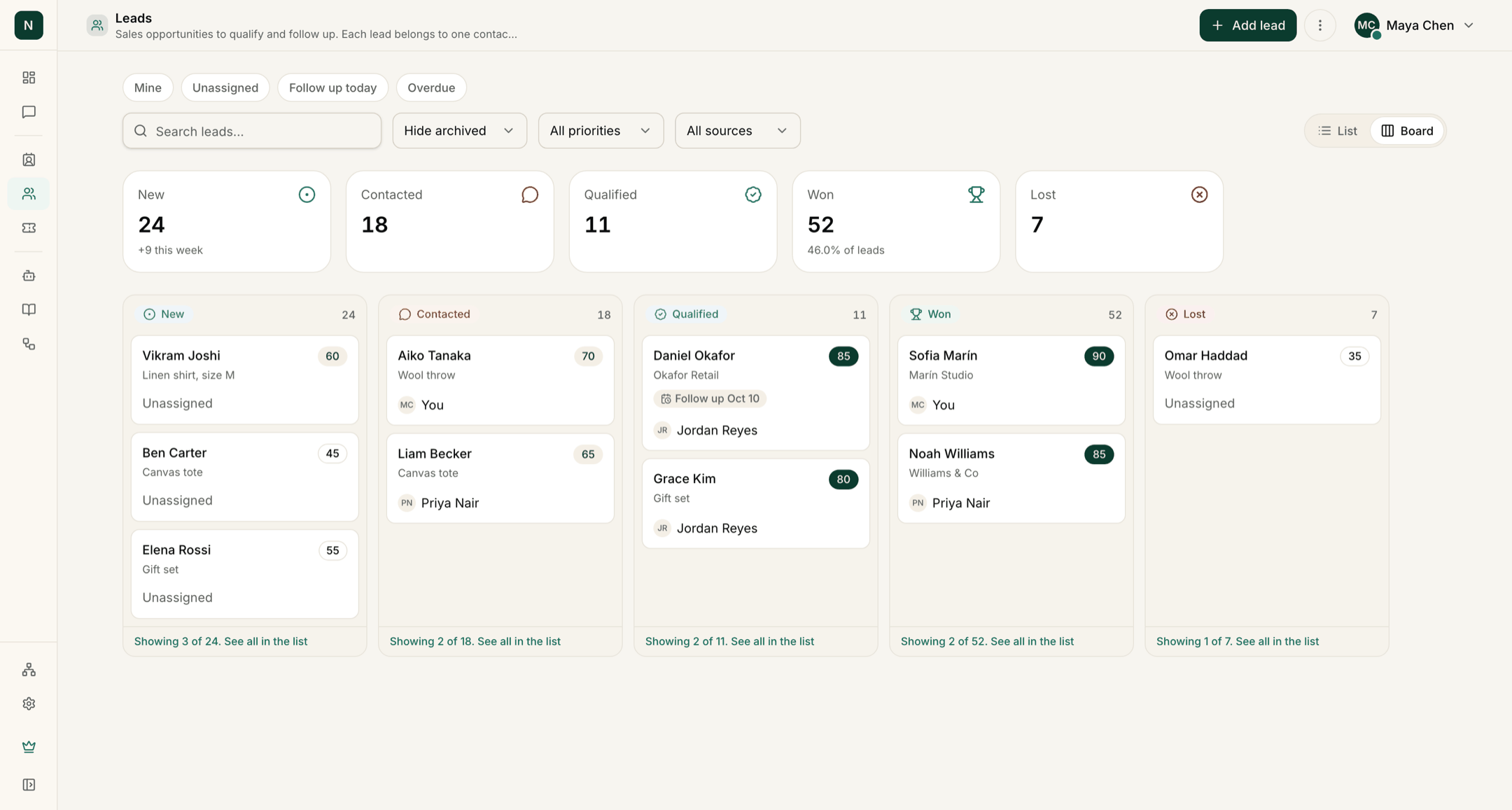
The Leads board, with sample data: stage counts above one column per stage.
The board and the list
The Board is the default view, with one column for each stage. Use Layout to switch to the List, which has tabs for All open, New, Contacted, Qualified, Won and Lost. ZynfoAI remembers your choice in this browser. The cards at the top count the leads in each stage. New also shows how many arrived this week, and Won shows the share of all leads that were won.Stages
- New: just captured.
- Contacted: someone on your team has been in touch.
- Qualified: a good fit.
- Won: became a customer.
- Lost: not going ahead.
Find and work leads
- Show only chips narrow the board or list to Mine, Unassigned, Follow up today or Overdue.
- Search by name, email or phone, and filter by priority (Urgent, High, Medium, Low) and source (such as Chatbot, WhatsApp, Website, Email or Manual).
- In the list, tick several leads to Change owner, Sync CRM or Delete them together.
Open a lead
Click a card or row to see the lead’s contact details, product interest, notes and activity timeline.- Next step: choose the Owner (or click Assign to me) and set a Follow up date and note. Follow-ups feed the Follow up today and Overdue chips.
- Open conversation opens the chat the lead came from, and View contact opens the contact page. Each lead has its own link you can share.
- A lead from the Demo Scheduler workflow shows a Demo call with the meeting time. Lead Capture only collects contact details; it doesn’t book a meeting.
Lead score
Each lead gets a score out of 100 from what the customer shared:
Leads you add yourself always get the full 20 for intent. Click How the score works next to
Score to see this breakdown in the app. The scoring is fixed and can’t be changed.
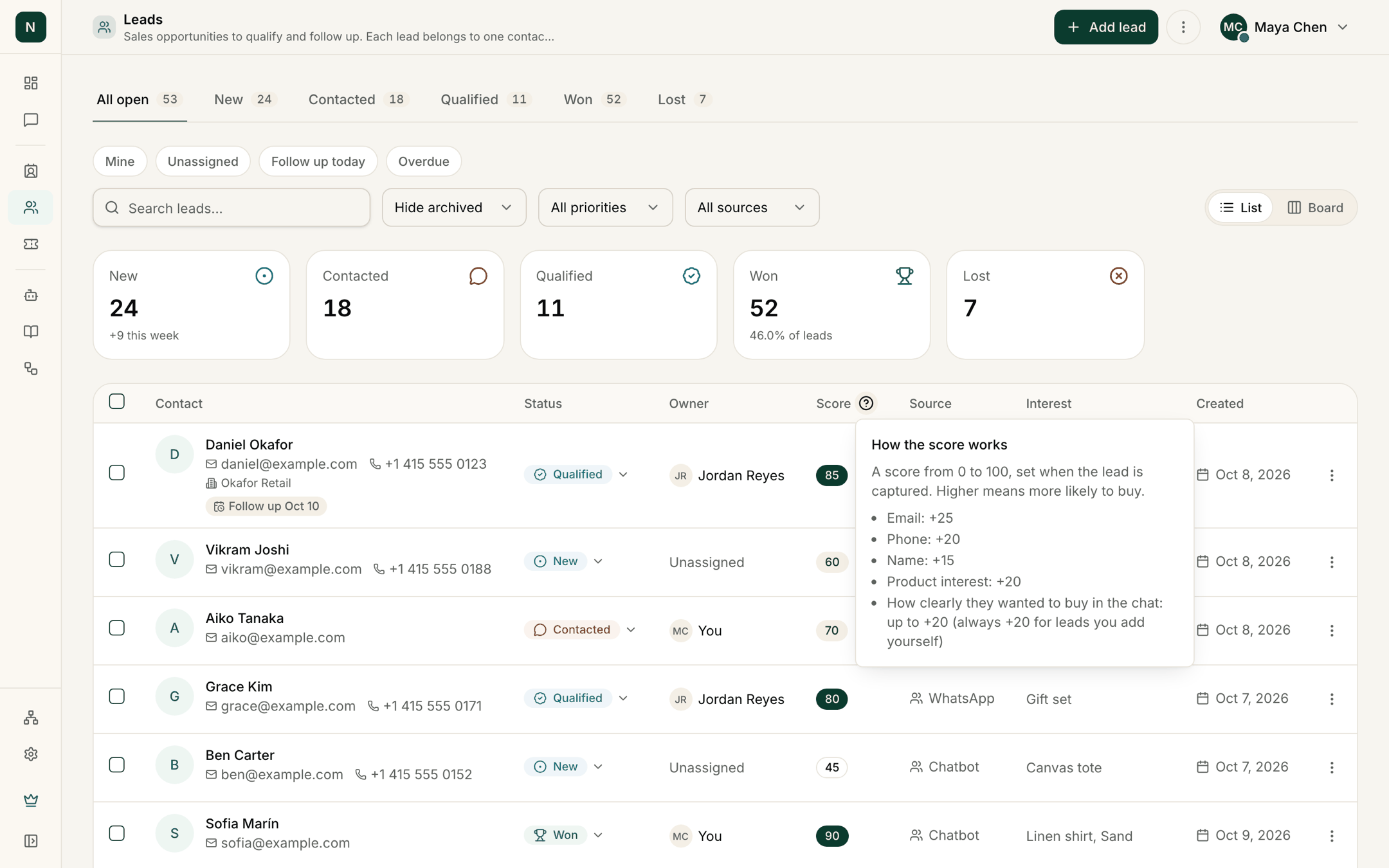
The How the score works popover next to the Score column.