

Website
ZynfoAI finds the pages on your site, and you choose which ones your agent learns from. It reads your sitemap, then follows links, and respects the site’srobots.txt rules unless you turn that off under
Advanced.
1
Enter your site
Type your address in Website address.
yourstore.com is enough. Click Find pages.
To skip choosing, click Or train on the whole site.2
Choose pages
Under Choose pages, tick the pages you want. Next to Select, Suggested picks the pages
most likely to help; All and None select everything or nothing. Use Search pages to
narrow the list. The count (for example “12 of 50 pages on your plan”) shows how many your plan
includes.
3
Train
Click Train AI agent on N pages. Training continues in the background, so you can leave the
page. Your site then shows under Your websites, where the More actions menu has Pause,
Resume, Stop and Remove.
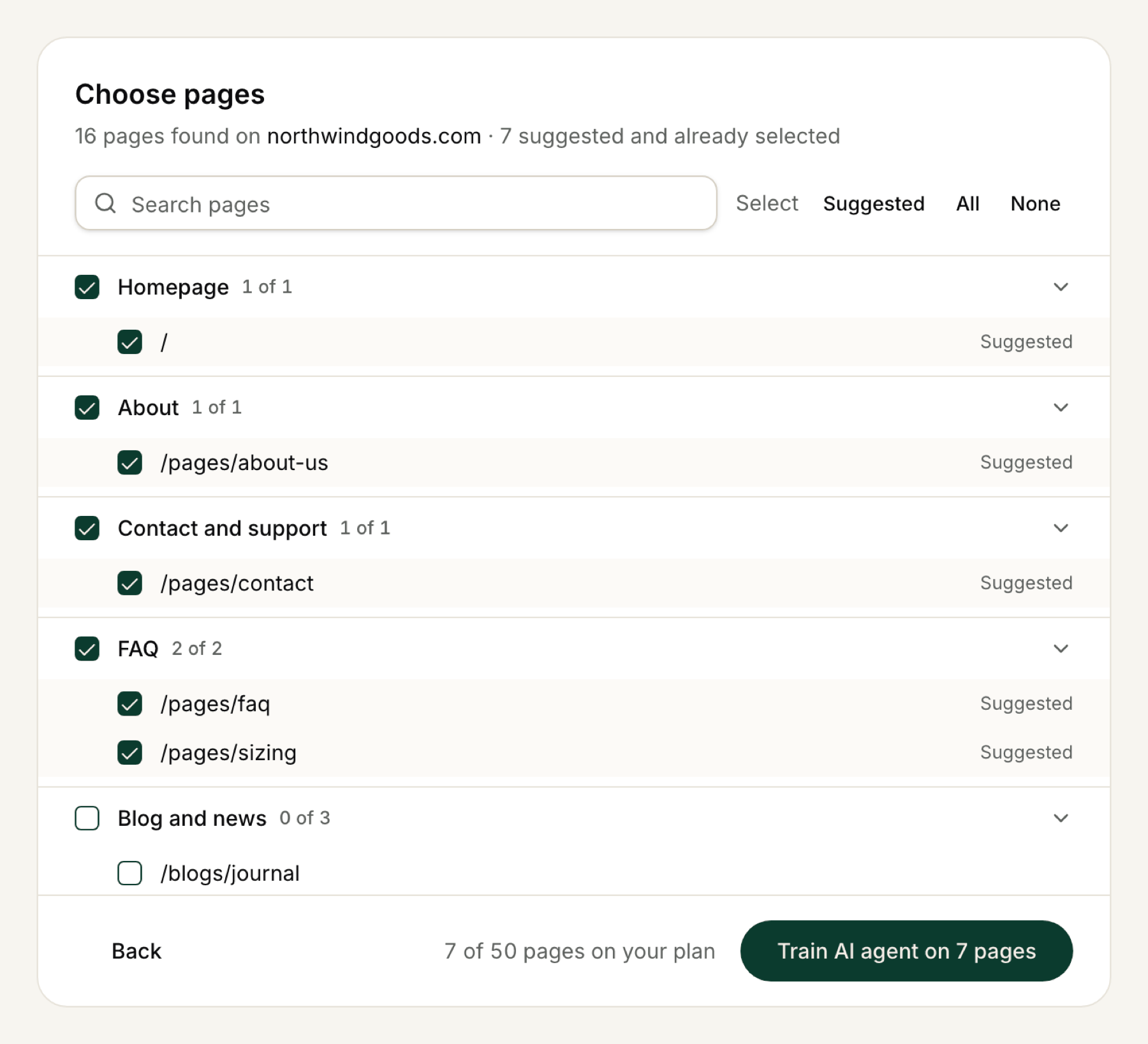
Choose which pages your agent learns from, with sample data.
robots.txt rules. The defaults suit most sites.
Files
Upload PDF, Word (.doc, .docx) or Excel (.xls, .xlsx) files of up to 5 MB each. Drag them onto
the page, or click browse, then click Train AI agent (or Train AI agent on N files for
several). For an Excel file, tick the sheets to use first, then click Train on N sheets. Click
View training progress to follow it.
Uploaded files can’t be read again later. To update one, upload the new version with the same file
name and choose Replace; see Update a file or Google Doc.
Google Drive
Use the Google Docs and Sheets you choose:- Under Connect Google Drive, click Connect Google and sign in. ZynfoAI can only open the files you pick; nothing else in your Drive is shared.
- Click Pick files and choose files in the Google file picker. Click Add more files to pick others.
- Under Your files, untick anything you don’t want and click Train AI agent.
Notion and database connections are not available yet. There’s no option to type questions and
answers in by hand: put them in a document or a page on your website and add that.
Follow training
Recent activity on the Train AI agent page shows your latest sources and their status:- Ready: the agent can answer from it.
- Training: the agent is still learning from it.
- Queued: it will start shortly.
- Paused: you paused it. Resume it from Your websites.
- Failed: something went wrong; the reason shows underneath.