

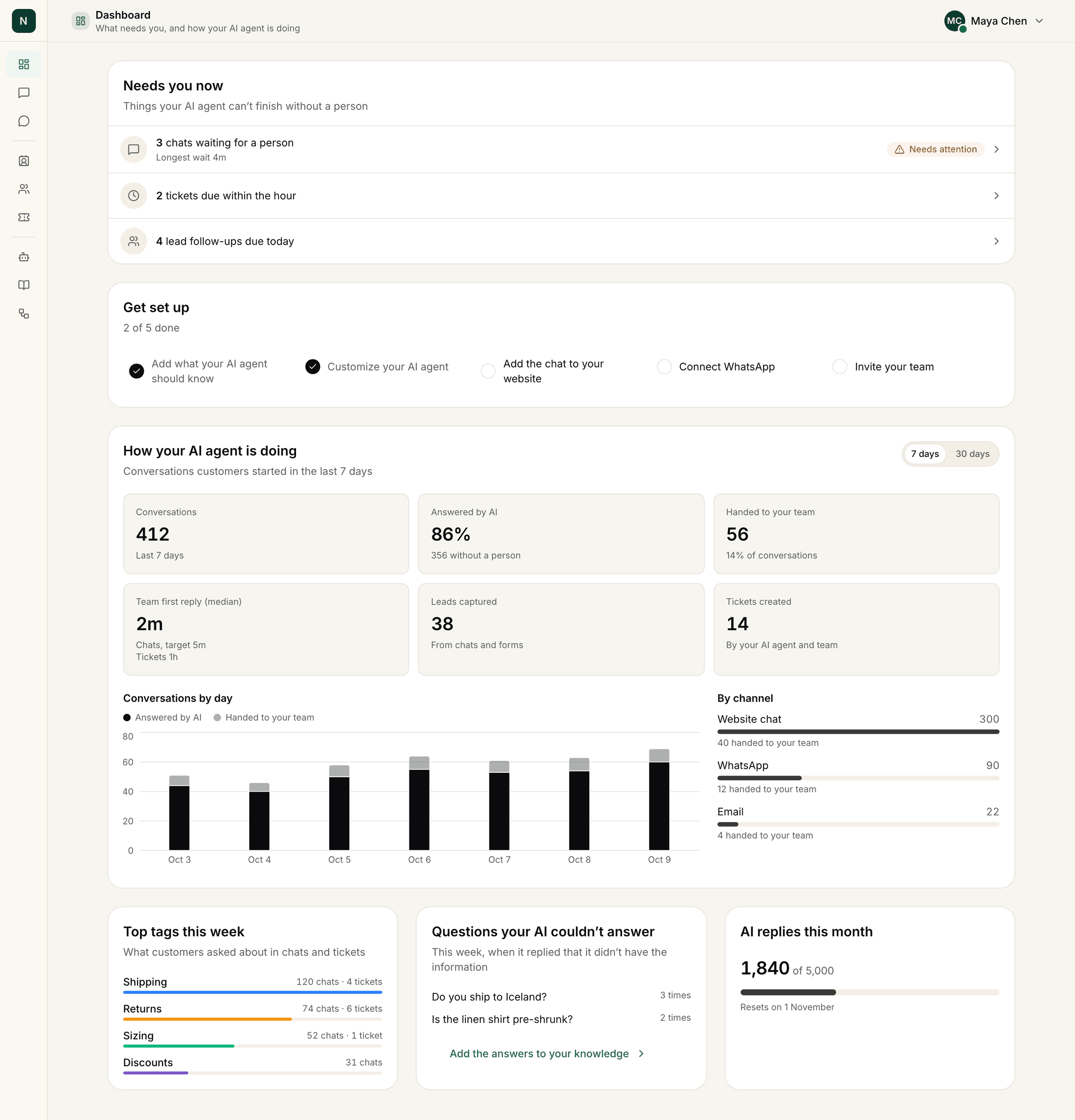
The Dashboard, with sample data.
Needs you now
The things your AI agent can’t finish without a person:- chats waiting for a person
- tickets past the reply-time target, due within the hour, or past the due date
- lead follow-ups that are overdue or due today
- an integration that needs attention, for example WhatsApp: reconnect with Facebook, WhatsApp: connect your real business number (a Meta test number can’t send replies to customers), or a connected app that stopped syncing
Next step: add your website
If your agent has no knowledge sources yet, the Dashboard shows Next step: add your website. Enter your Website address (yourstore.com is enough) and click Train AI agent. Training usually
takes a few minutes. The card then reads Your AI agent is training; click Test your AI agent to
open the Agent Playground and try it.
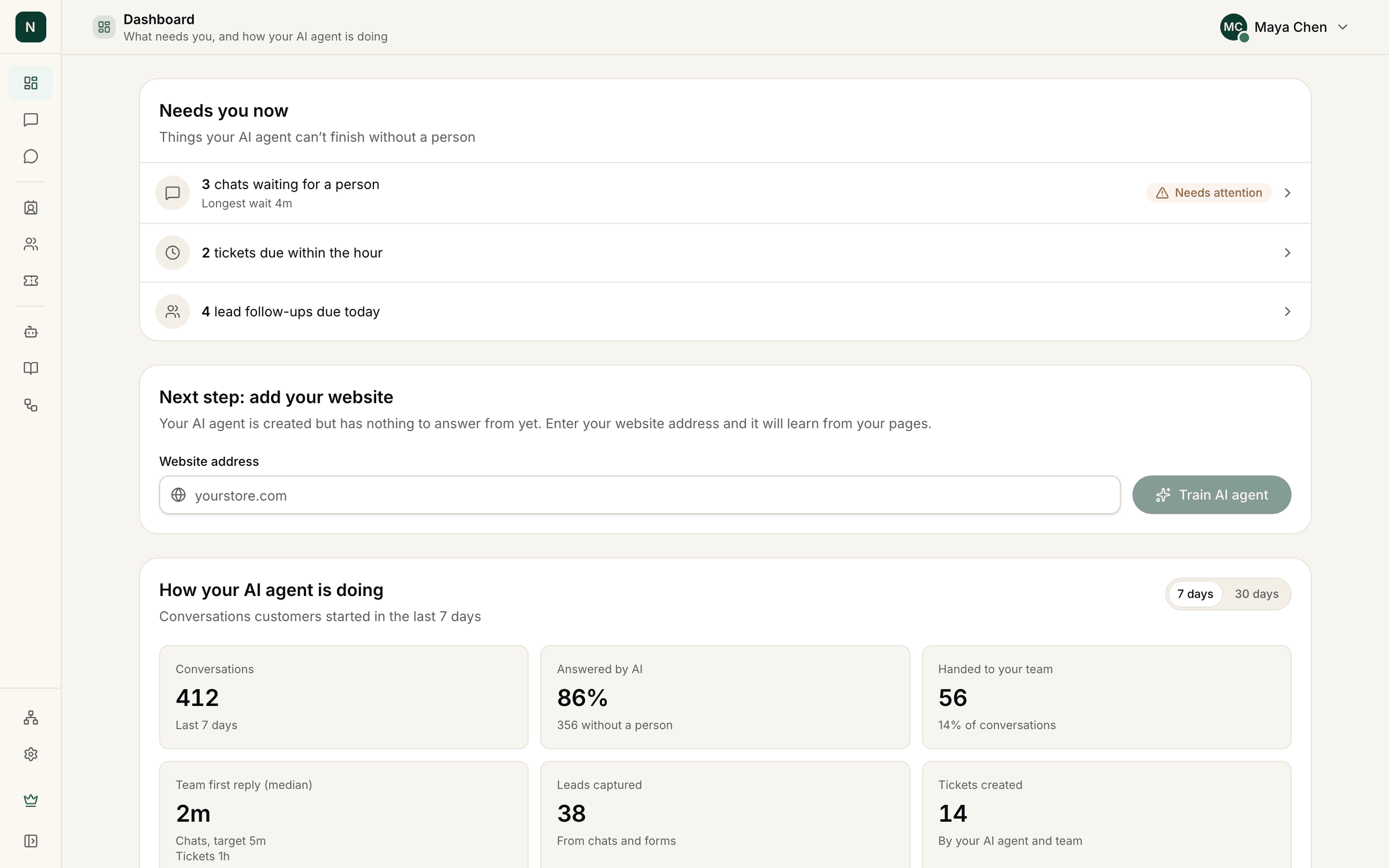
The add your website card, with sample data.
Get set up
During your workspace’s first 30 days, and until you’ve done them all, Get set up lists the first steps and how many are done:- Add what your AI agent should know
- Customize your AI agent
- Add the chat to your website
- Connect WhatsApp
- Invite your team
How your AI agent is doing
Choose 7 days or 30 days to change the period.- Conversations: conversations customers started in the period.
- Answered by AI: the share of conversations the AI handled without a person.
- Handed to your team: conversations handed to a person, and their share of all conversations.
- Team first reply (median): how long your team usually takes to reply in a chat after a handoff, next to your reply-time target if you set one. Tickets show their own time below it.
- Leads captured: new leads from chats and forms.
- Tickets created: tickets opened by your AI agent and your team.
Below the numbers
- Top tags this week: what customers asked about in chats and tickets. Owners and admins can click Manage tags. See Tags.
- Questions your AI couldn’t answer: questions from this week where the agent said it didn’t have the information, and how often each was asked. Click Add the answers to your knowledge to fill the gap.
- AI replies this month (owners and admins): how many of this month’s AI replies you’ve used, for example “120 of 1,000”, and when they reset. On the trial it shows when the Pro trial ends. When you are close to the limit, owners see See plans. See Plan limits and monthly usage.
The sidebar
- Dashboard: this page.
- Inbox: every conversation, and chats handed to your team.
- WhatsApp: campaigns, templates and contacts. It shows once WhatsApp is connected.
- Contacts: one page per customer with their chats, tickets, lead and orders.
- Leads: people who left their details in a chat.
- Tickets: follow-ups your team owes customers.
- AI agent: the agent’s profile and rules, knowledge, the chat widget and the code to add it to your website, email, WhatsApp and live chat settings.
- Data sources: the websites, files and Google Docs your agent answers from. Train AI agent opens the page where you add more.
- Workflows: ready-made and custom workflows the agent can run. See Workflows.
- Integrations: Shopify, WhatsApp Business, Freshsales, calendars and Google Drive.
- Settings: Team, Account, Appearance, Billing & Usage, Tags and Workspace. Each person sees only the tabs their role allows.